3.3 - Post-Survey Mapping
Identifying features and the appropriate restoration work
In this section of the course you will be checking a number of features mapped in the Pre-mapping (3.2) phase and comparing them to the information recorded during a subsequent field survey. The field survey results are recorded as points. For clarity we have set their data to be displayed in Labels.
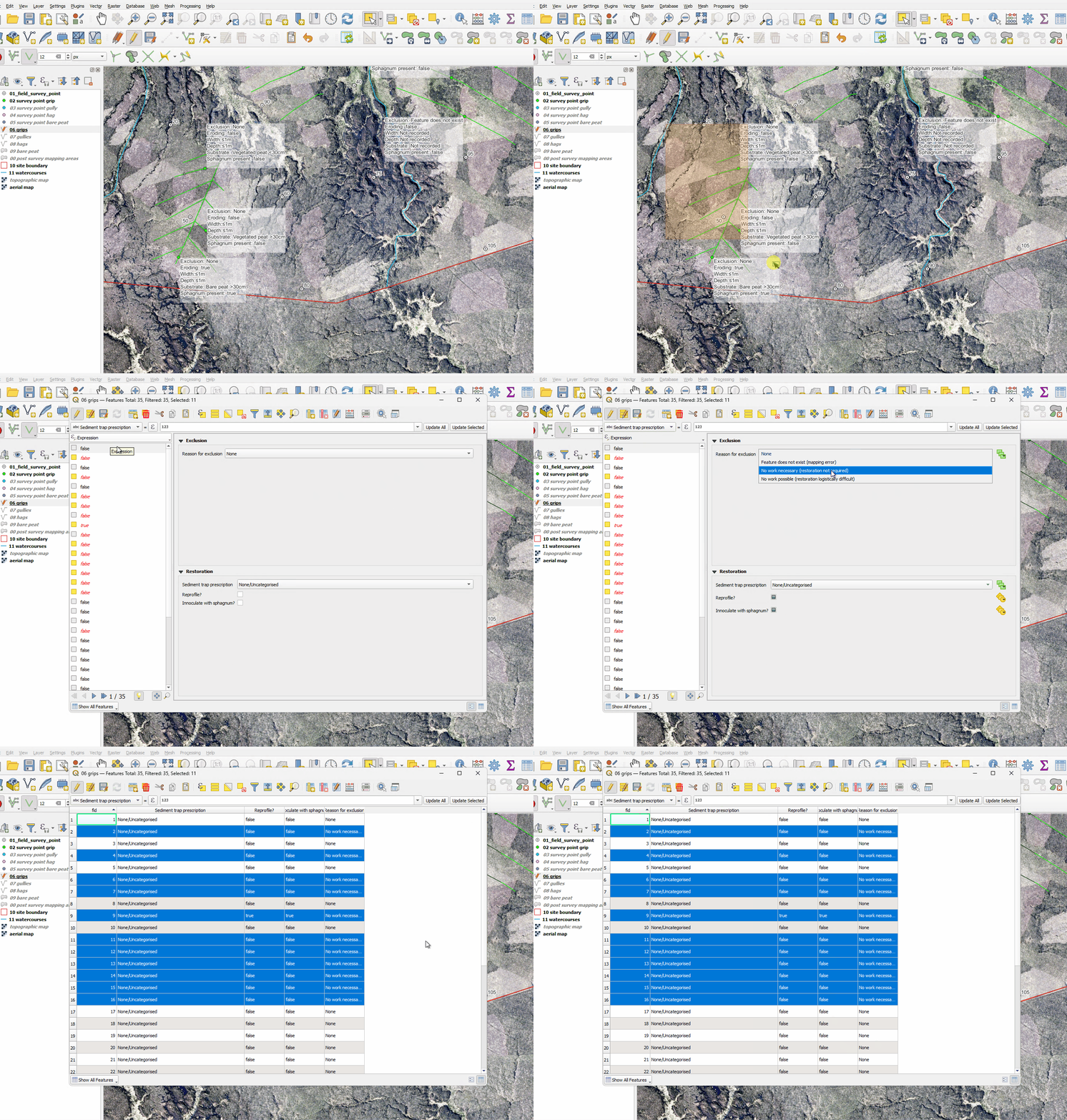
How to access and edit the Attribute Table
Select
 the feature on the map canvas you want to view and/or edit.
When it turns yellow to indicate it has been selected, click the Attribute Table button
 .
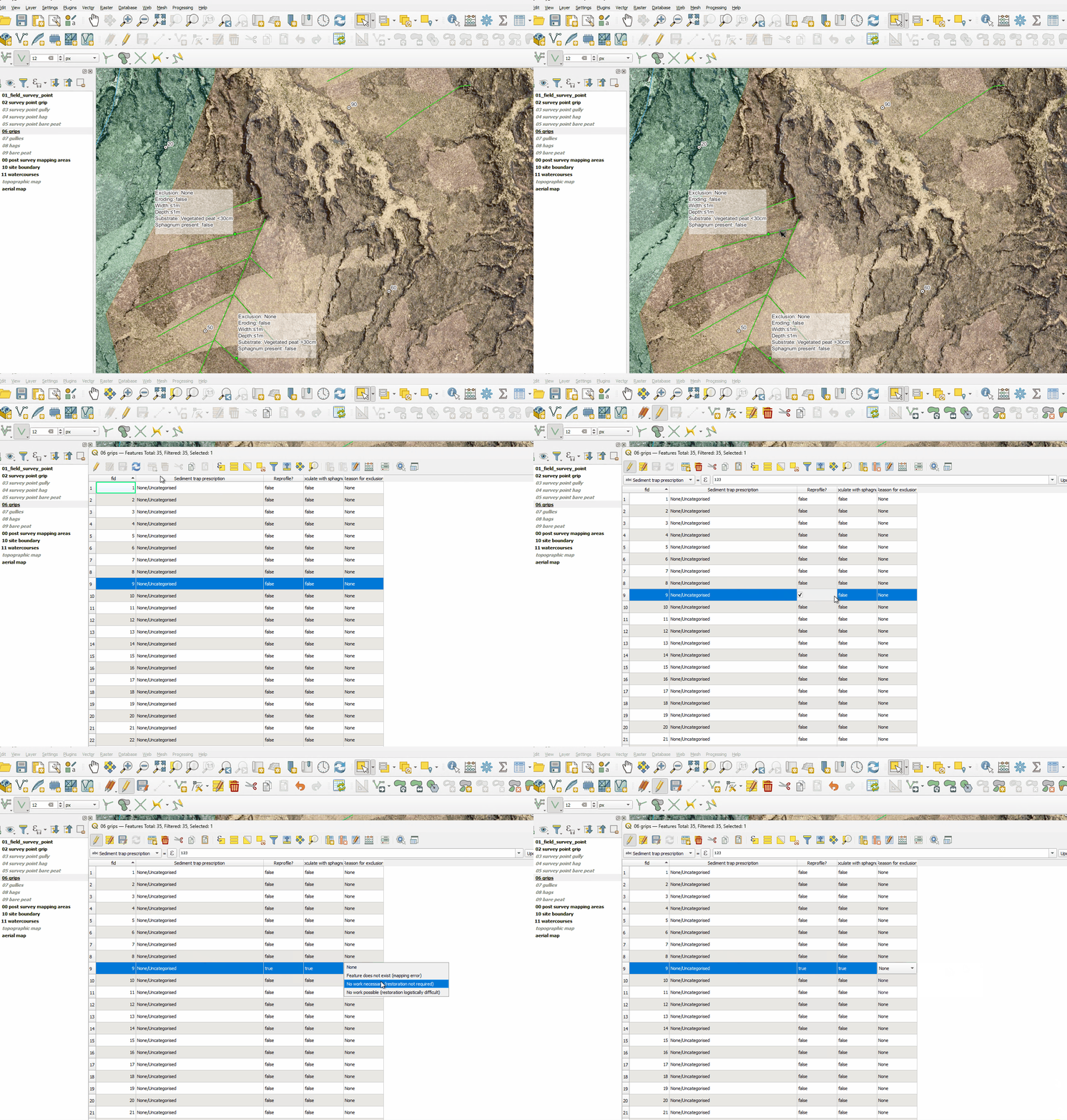
.Your selected feature will be highlighted on the table in blue. Each column in the table holds a different piece of data and each can be edited.
To do this, first making the table editable
 and then click the relevant data field.
If you cannot see your selected feature in the Attribute Table, click the Move Selection to the Top button  to set the feature as the first item listed on the table.
How to use the Identify Features tool
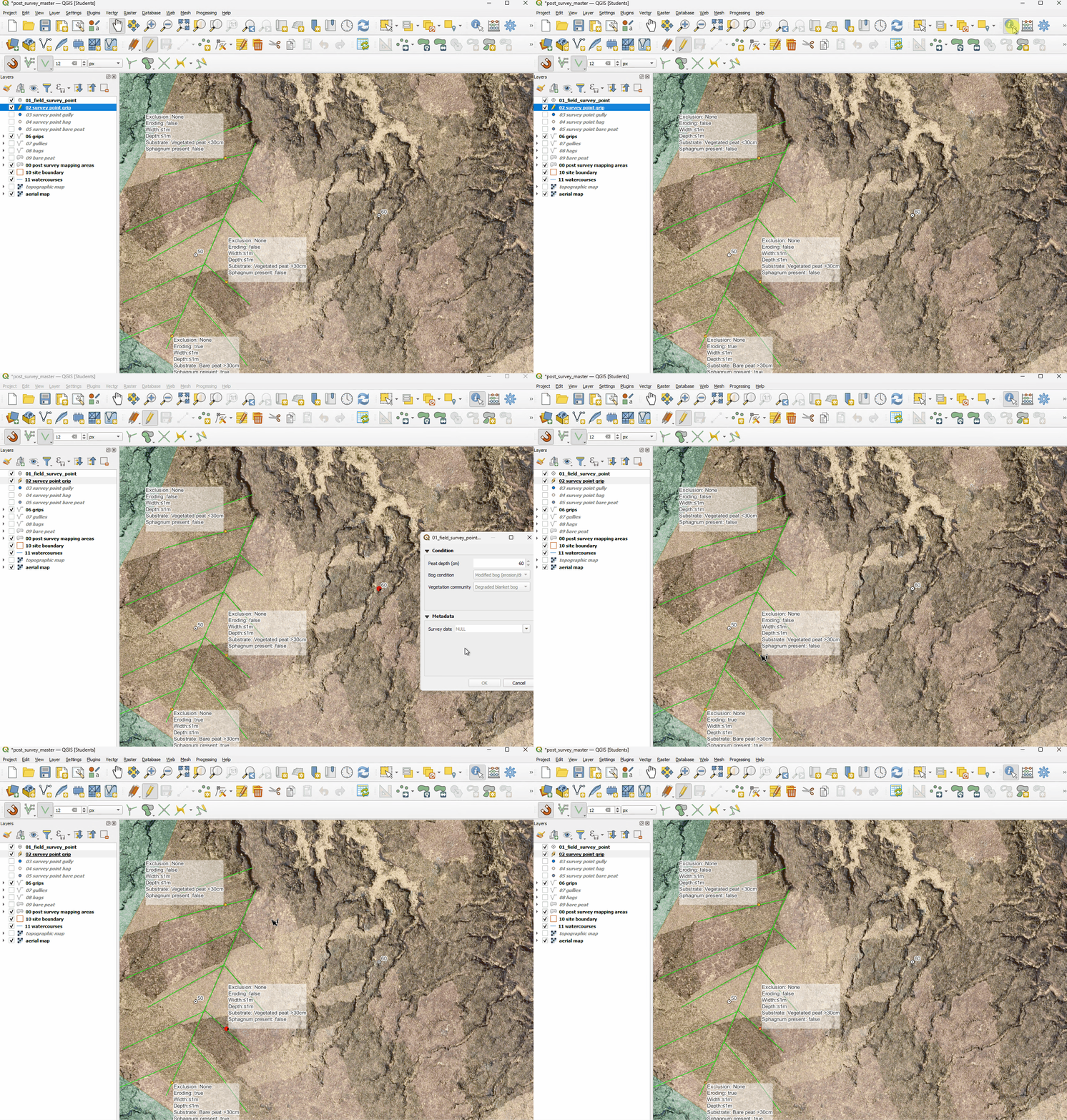
This represents an alternative way to edit the details of a single feature.
Click on the Identify Features tool
 .
.With this tool selected you can click on a feature and see the attributes associated with it in a pop-up window.
If the layer is editable, you can change the attributes set for that particular feature.
Click the Pan Map tool
 to return to your standard pointer.
How to display the Identify Results Panel
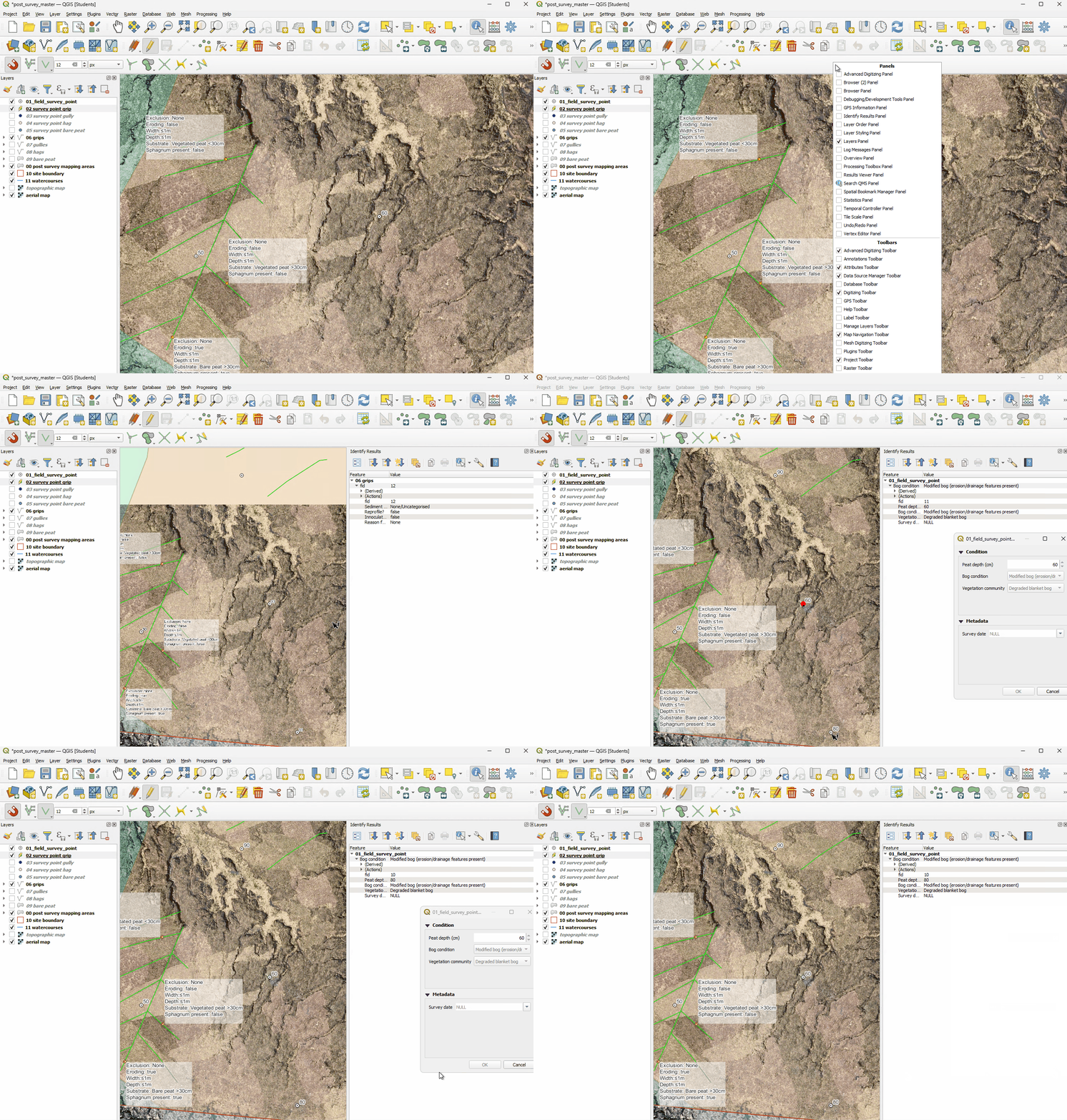
By right-clicking the menu bar you can show the Identify Results Panel by checking its box.
This panel can be used to keep the attributes of a feature clicked with the Identify Features tool after the pop-up box has been closed.
The panel will remain visible until you close it with the X in it’s top-right corner.
How to Split Features
Should you find two different survey points along the same feature, you may want to split the feature.
To do this click the Split Features button
 .
.Left-click either side of the feature to draw a line where the split will be made and then right-click.
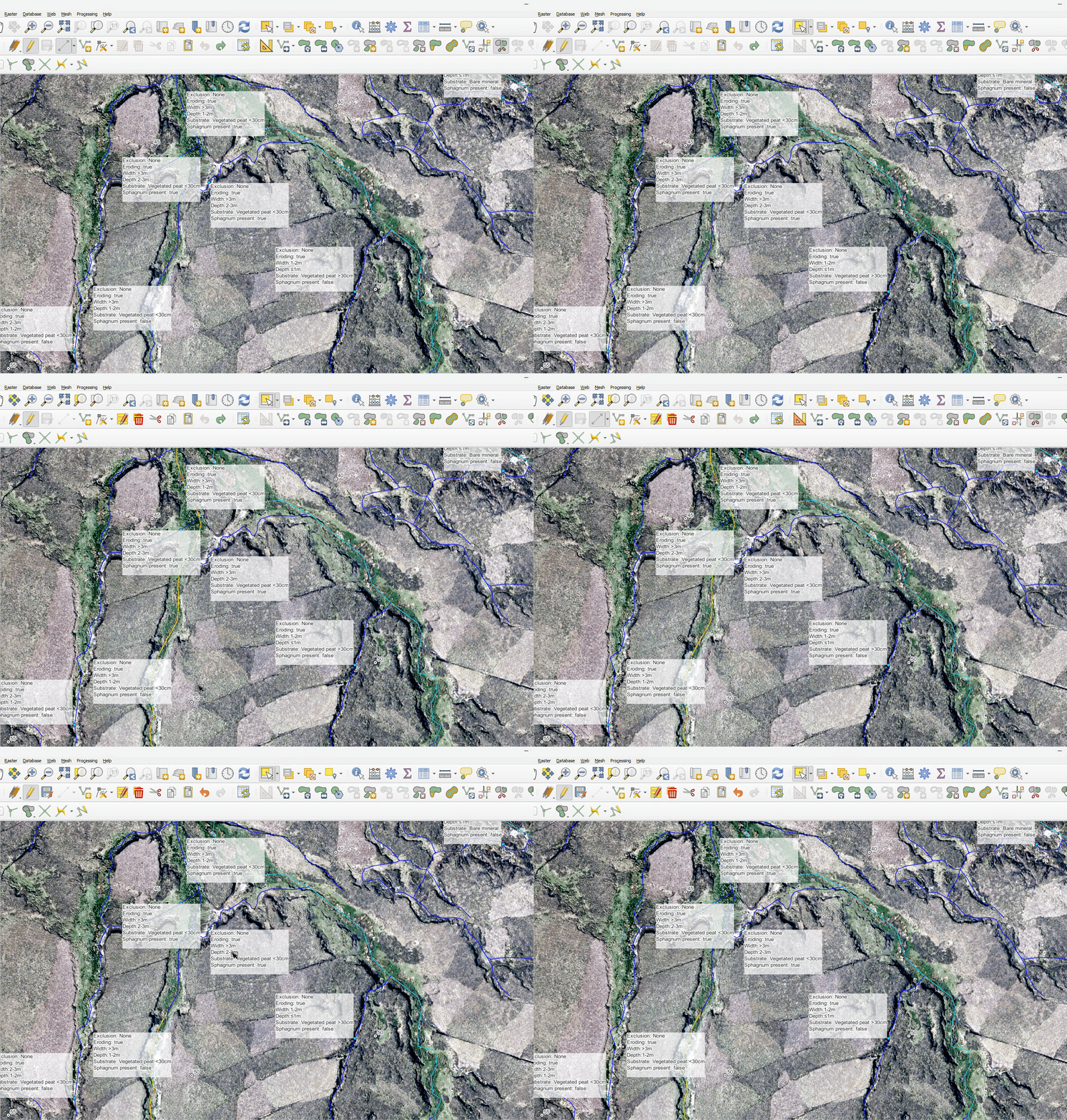
How to edit multiple features simultaneously
To change the attributes of multiple like features simultaneously, first select the features you wish to edit.
Open the Attribute Table
and click Toggle multi edit mode  .
.Set the attributes to the desired values and save the changes by clicking the Save button
 .
.You can revert the Attribute Table to its column view by clicking the table view
button at the bottom-right corner of the window.