QGIS Basics
QGIS in the Classroom
When you sit down at your PC in the QGIS sections of the course, the latest version of QGIS will already be installed, configured and ready to go. All you need to do is open the Start menu and search for QGIS, click the icon and the program will load up.
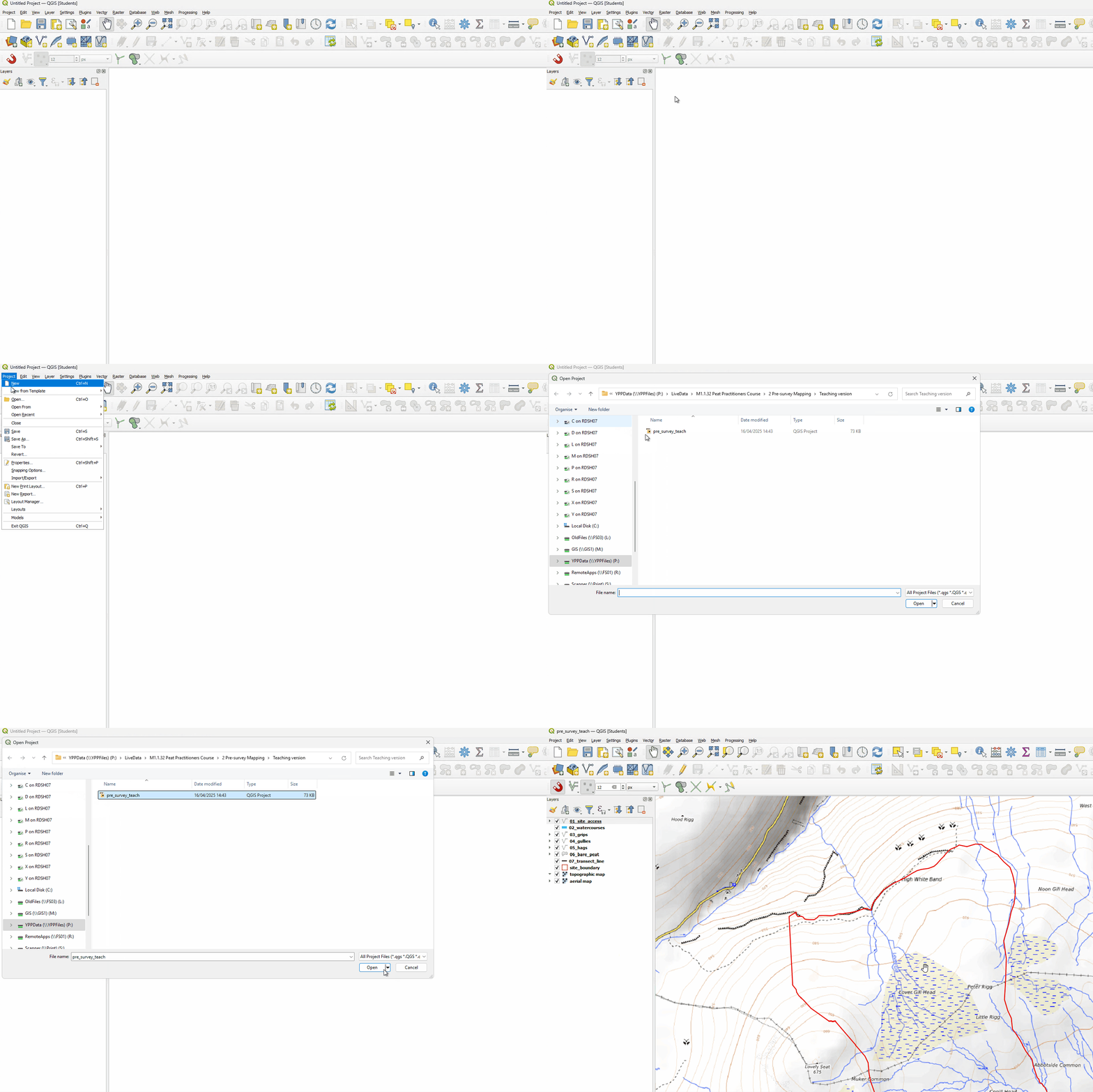
How to open a QGIS project
Click Project>Open in the menu bar.
Navigate to the project file you want to open and click Open.
How to hide/show or select layers
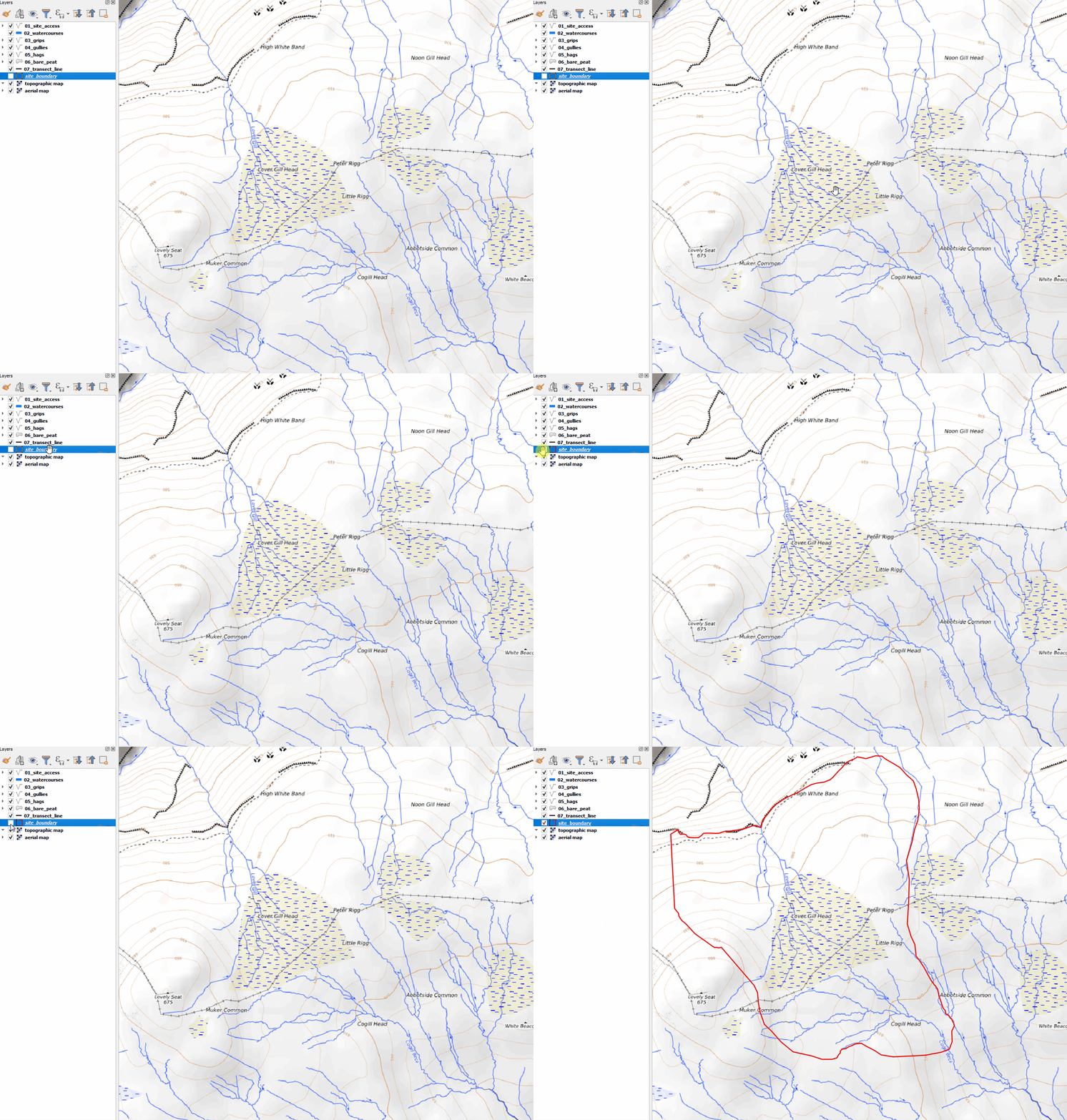
Check and un-check the box next to the required layer to show and hide it.
Click the name of a layer to make it active, highlighting it in blue.
How to add themes
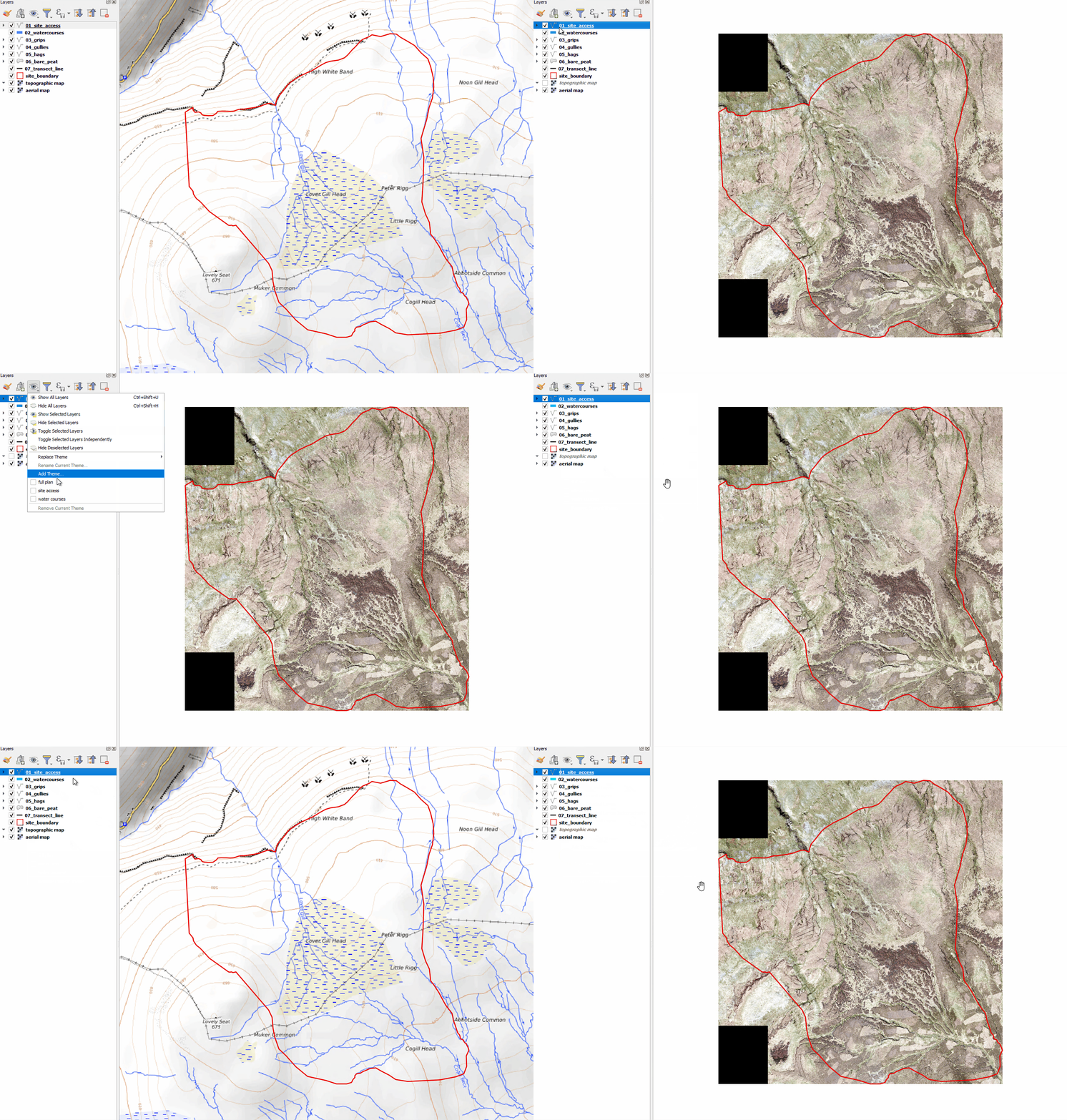
Hide/show the layers necessary for your Theme.
Click the Themes button on the Layers panel
 .
.Select Add Theme and give it a name.
You can now view this combination of layers at any time by opening the Themes menu again and checking the name of your created Theme.
How to draw a line feature
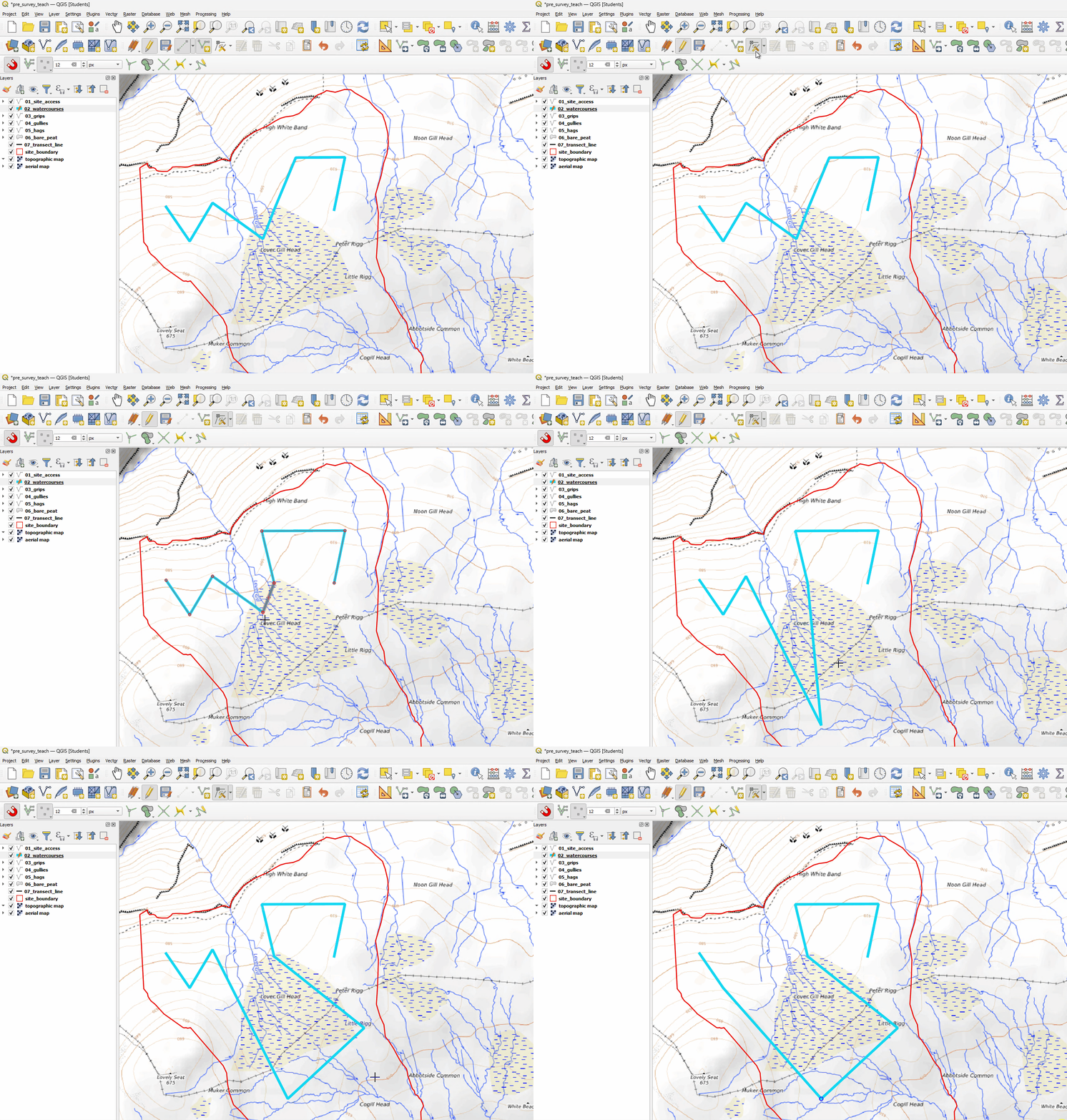
Select the relevant layer you want to draw on in the Layers Panel.
Set the layer to be editable with the Toggle Editing button
 .
.Next click the Add Line Feature tool
 .
.Start drawing your feature, Right-click when you have finished and confirm any details related to the line.

How to edit a line feature
Select the relevant layer selected and editable, click the Vertex Tool icon
 .
.By clicking each point along your line you can re-position it.
Additional points can be created by clicking the cross at the central point of each line.
Points can be deleted by clicking them and then pressing the Delete key.
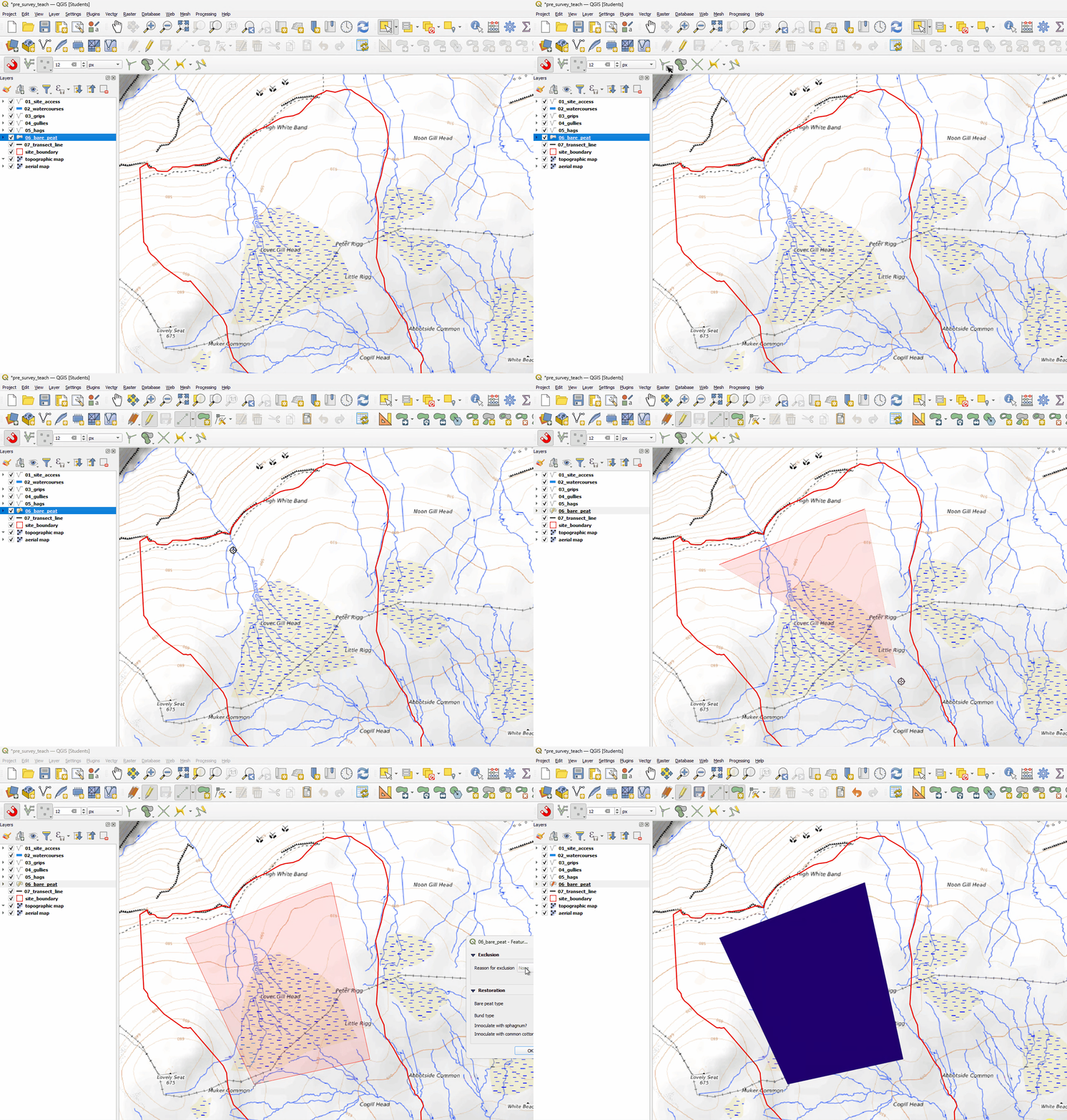
How to draw a polygon
Select the relevant layer in the Layers Panel.
Set the layer to be editable with the Toggle Editing button
.Next click the Add Polygon Feature tool
 .
.Start drawing your feature, Right-click when you have finished and confirm any details related to the polygon.
How to select a feature
Select the relevant layer selected in the Layers Panel.
Click the Select Feature(s)
 tool. You can now select any features by clicking them or dragging a box around them. This will turn them yellow when selected.
This can also be done Freehand
 or by drawing a Polygon
  .
.Click the Deselect Features From All Layers
 tool to de-select all selected features.
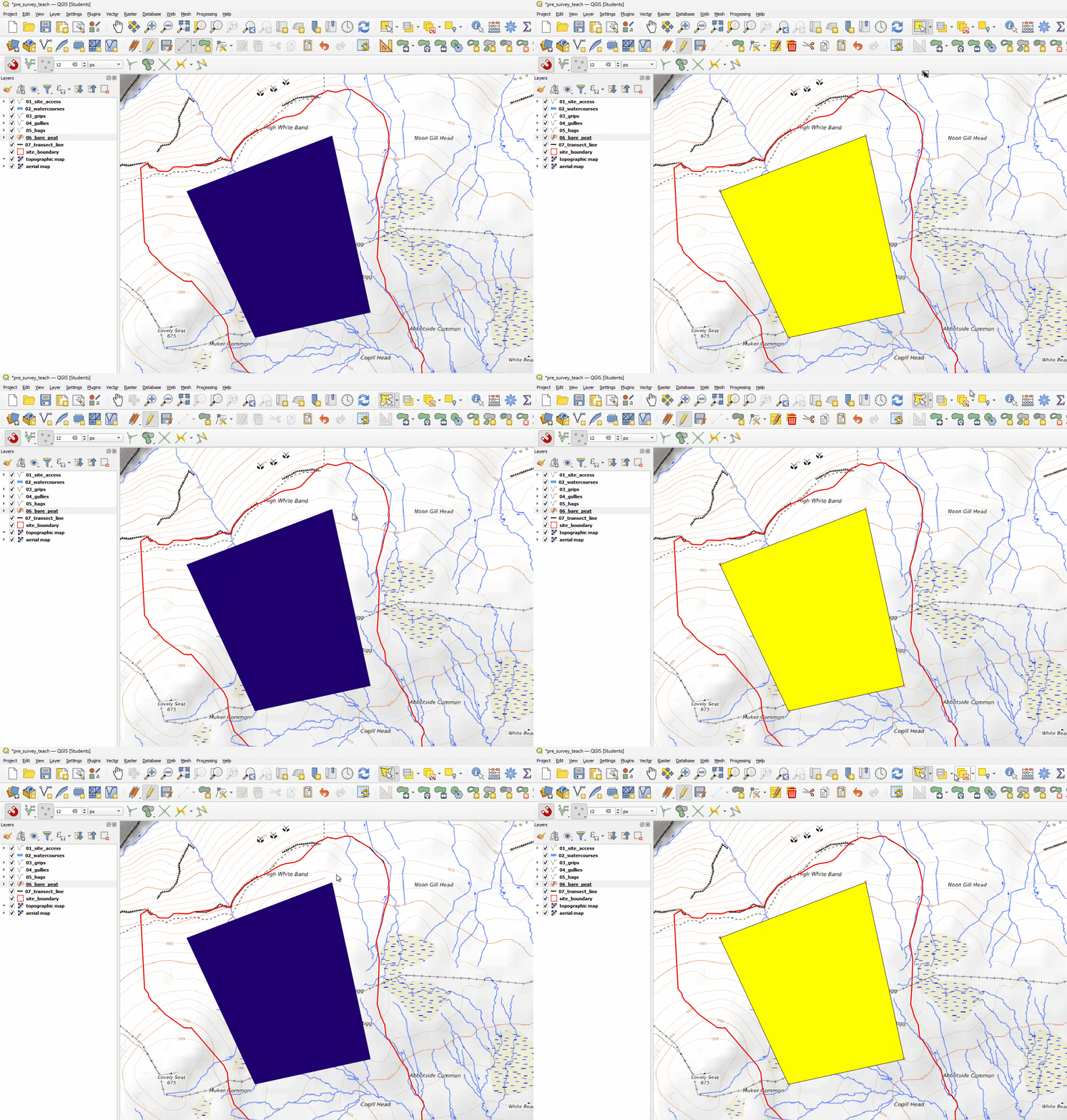
With the Select Features tool active you can select multiple features by Ctrl-Clicking each one individually.
Saving your changes
All changes you make to a layer you have made editable needs to be saved by clicking the Save button
 on the menu bar.
While you have un-saved changes for a layer, the edit icon on the Layers Panel will appear in red
 . When you have saved it will turn yellow.
Any changes you make to the framework of the map, such as whether a layer is visible or what colours it uses, are saved as a Project file (.qgz).
To save the Project as a whole, click Project>Save As…
Saving the Project file will not save any changes made to individual layers such as new lines or polygons you have drawn. These changes must be saved by clicking Save on the menu bar.