3.2 - Pre-Survey Mapping Basic
Digitising specific features
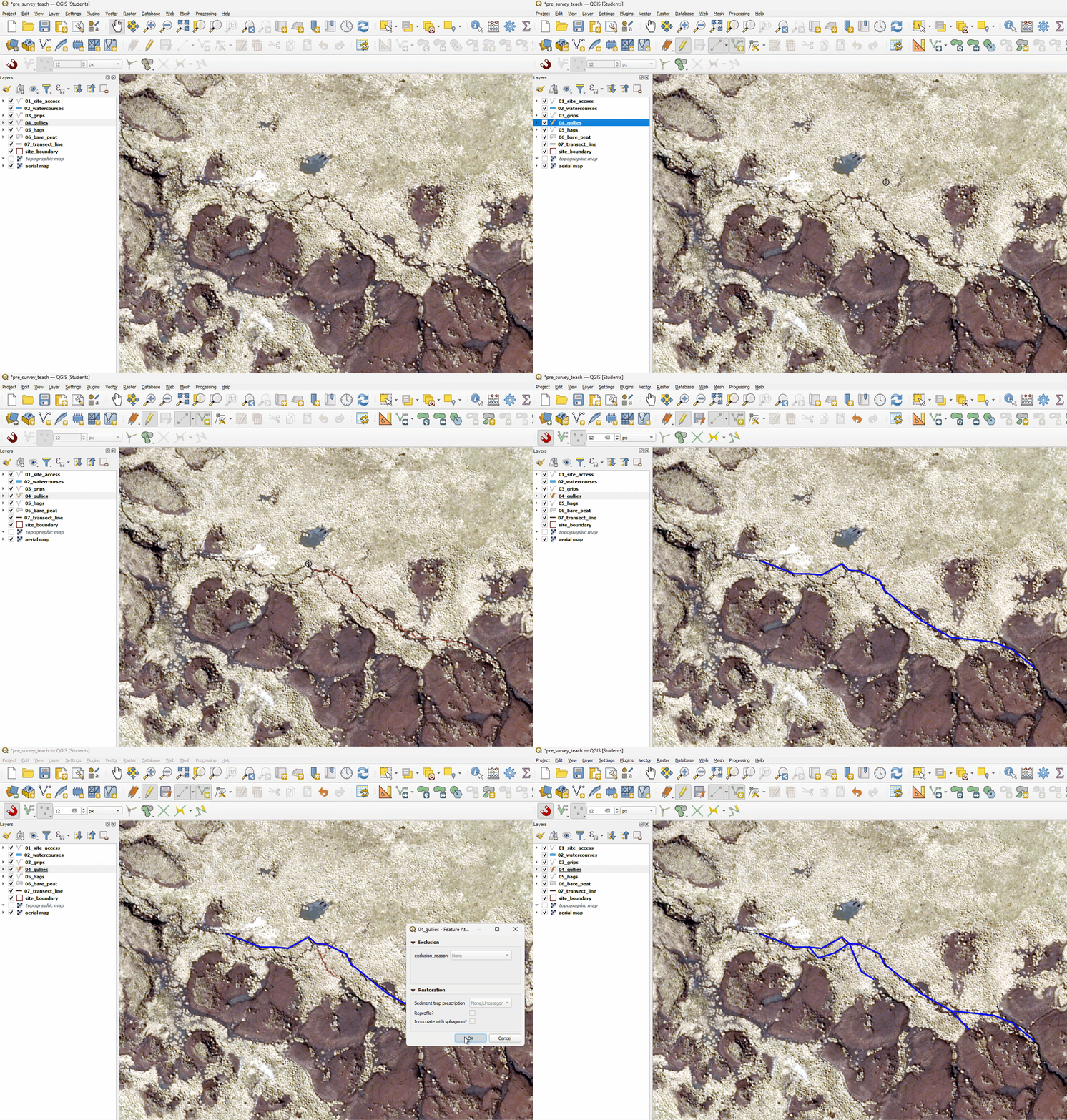
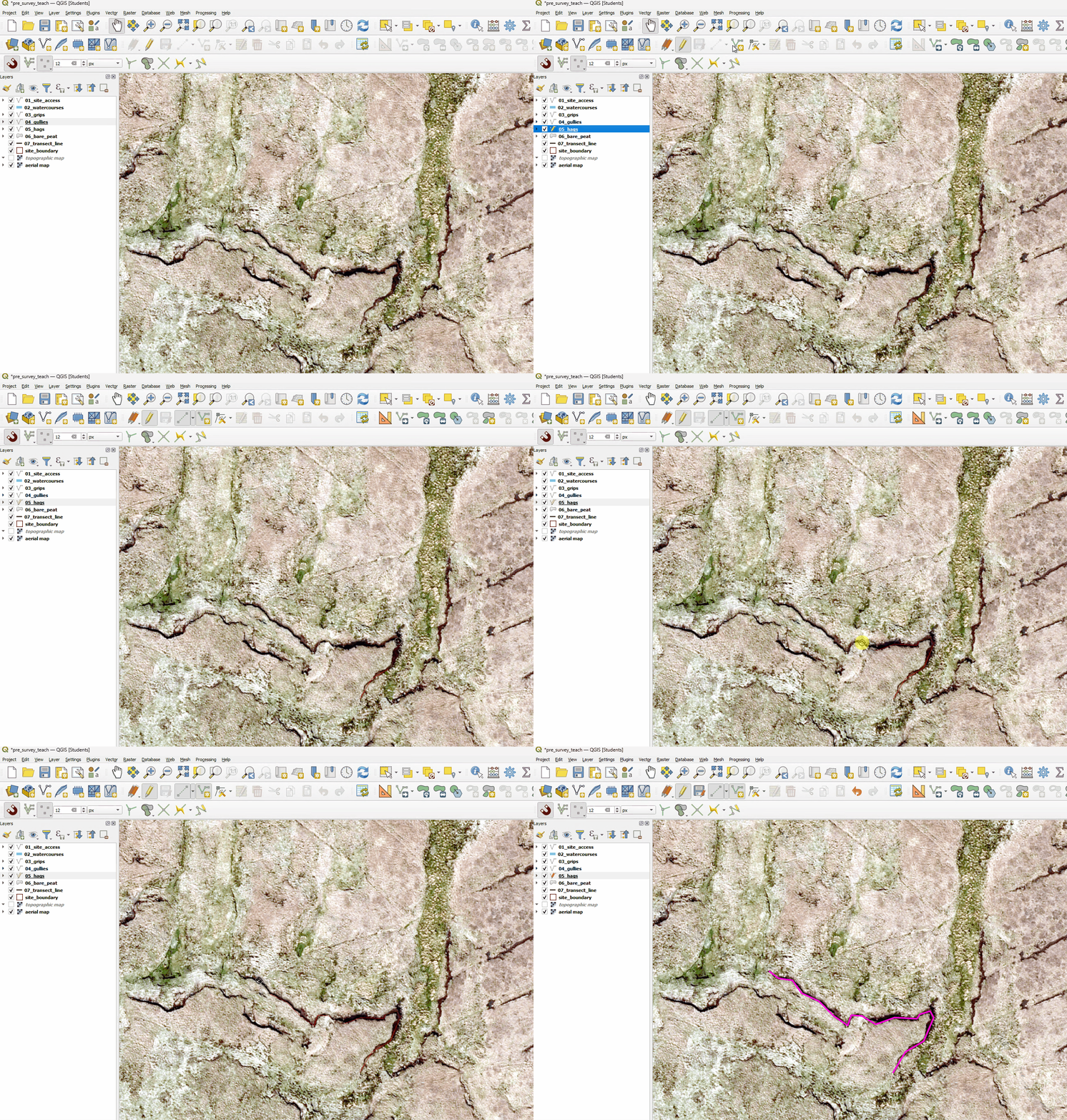
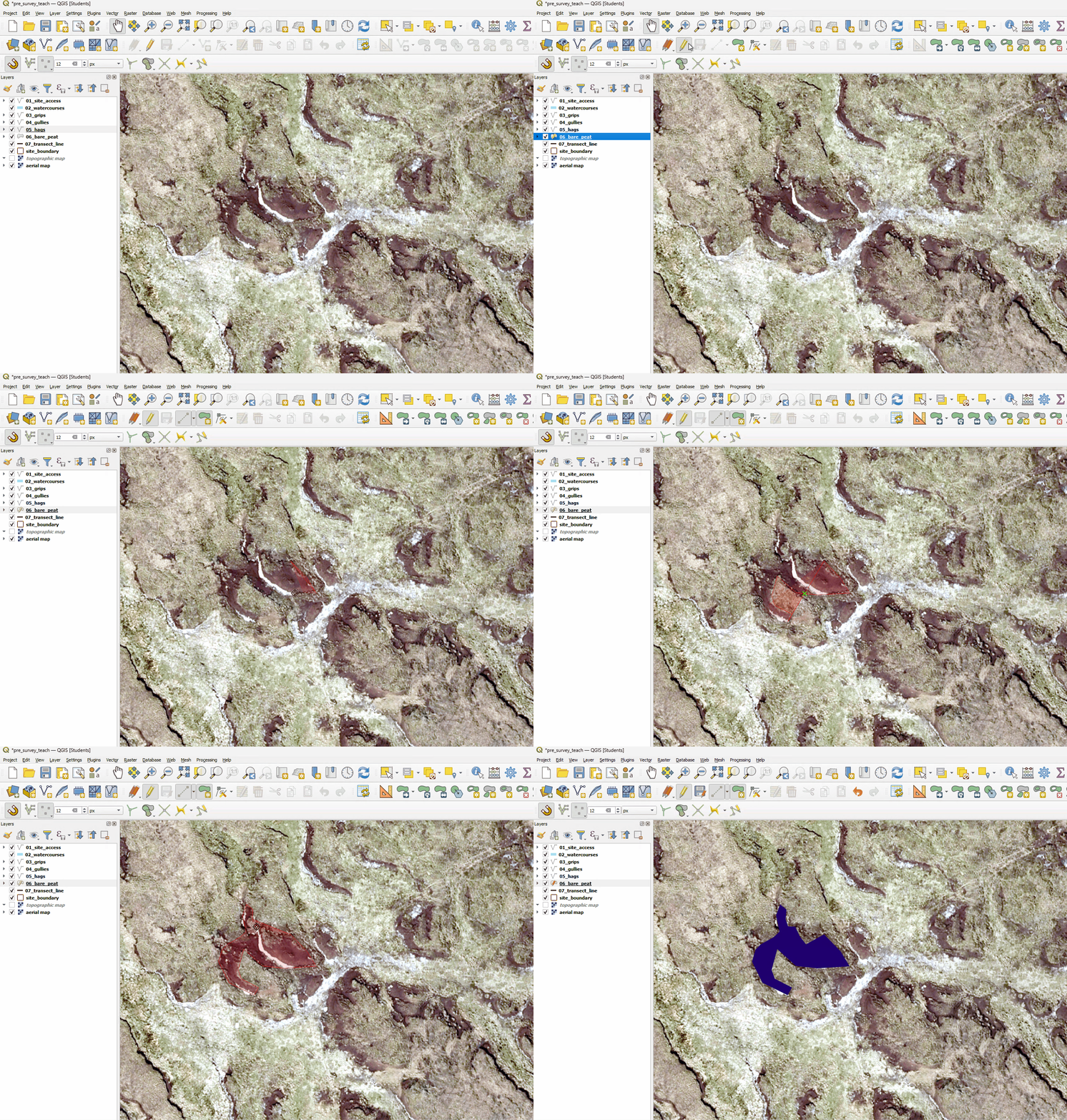
Select the relevant layer selected in the Layers Panel.
Set the layer to be editable with the pencil icon
 .
.Then click the add feature tool, this will look different for Points
 , Lines
  and Polygons
  .
.Start drawing over the feature using aerial photography or OSM Standard images as a guide. To see more detail you can zoom in by scrolling the mouse wheel.
Right-click when you have finished.
You may need to pan the map around by dragging it with the middle mouse button to see the whole feature you are digitising.
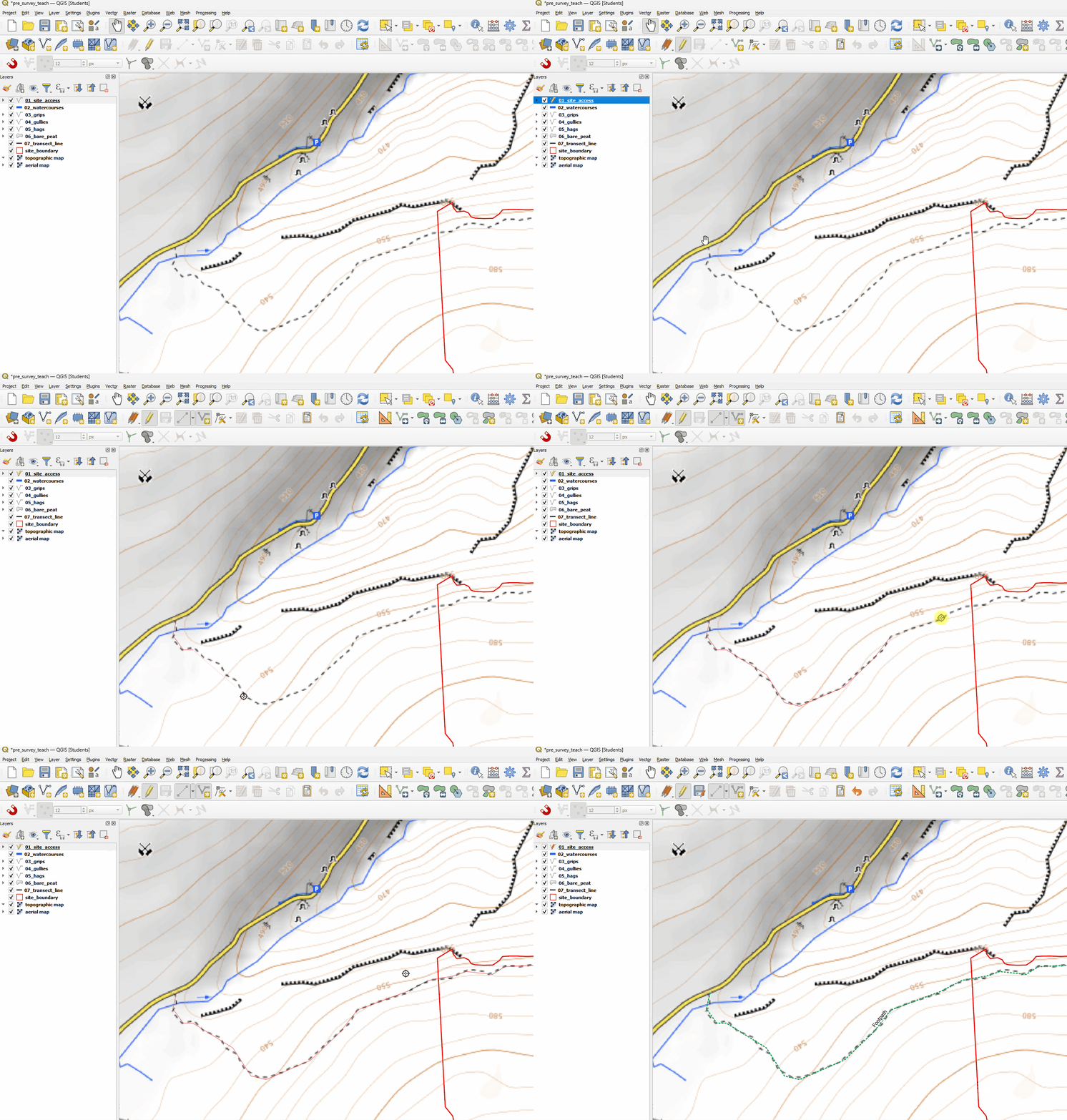
Site Access
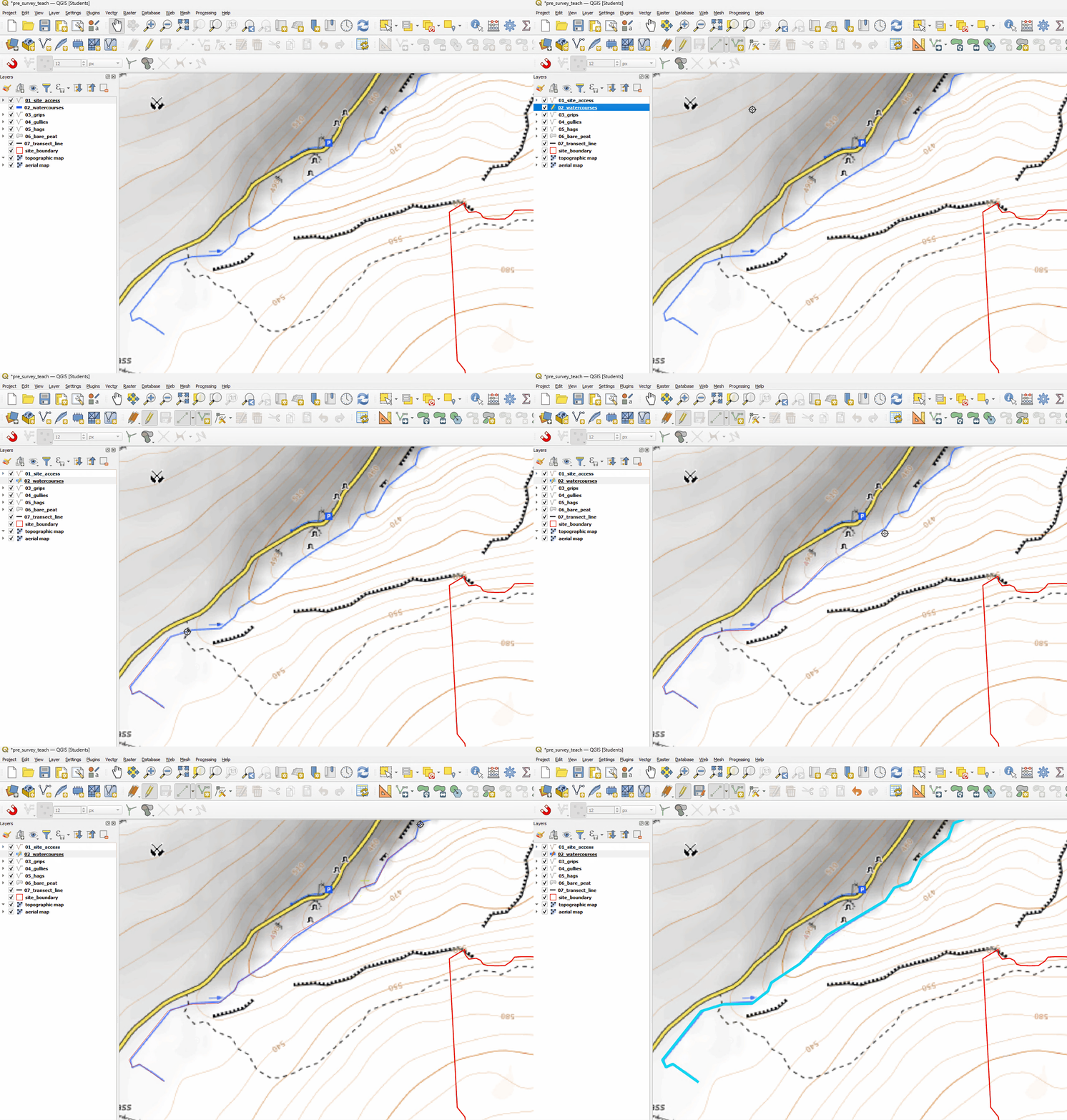
Watercourses
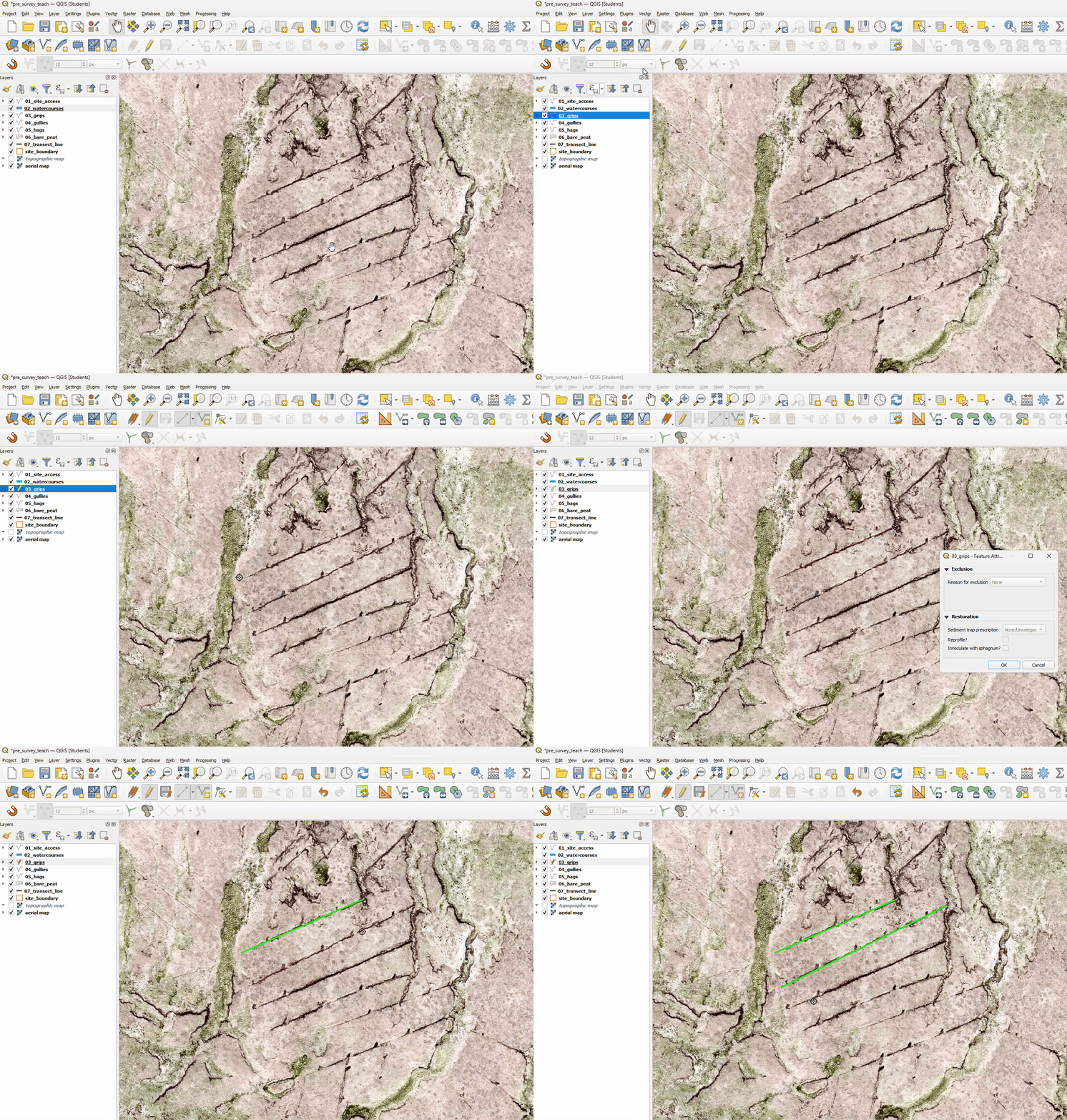
Grips
Gullies
Hags
Areas of bare peat
Survey setup
Adding survey points
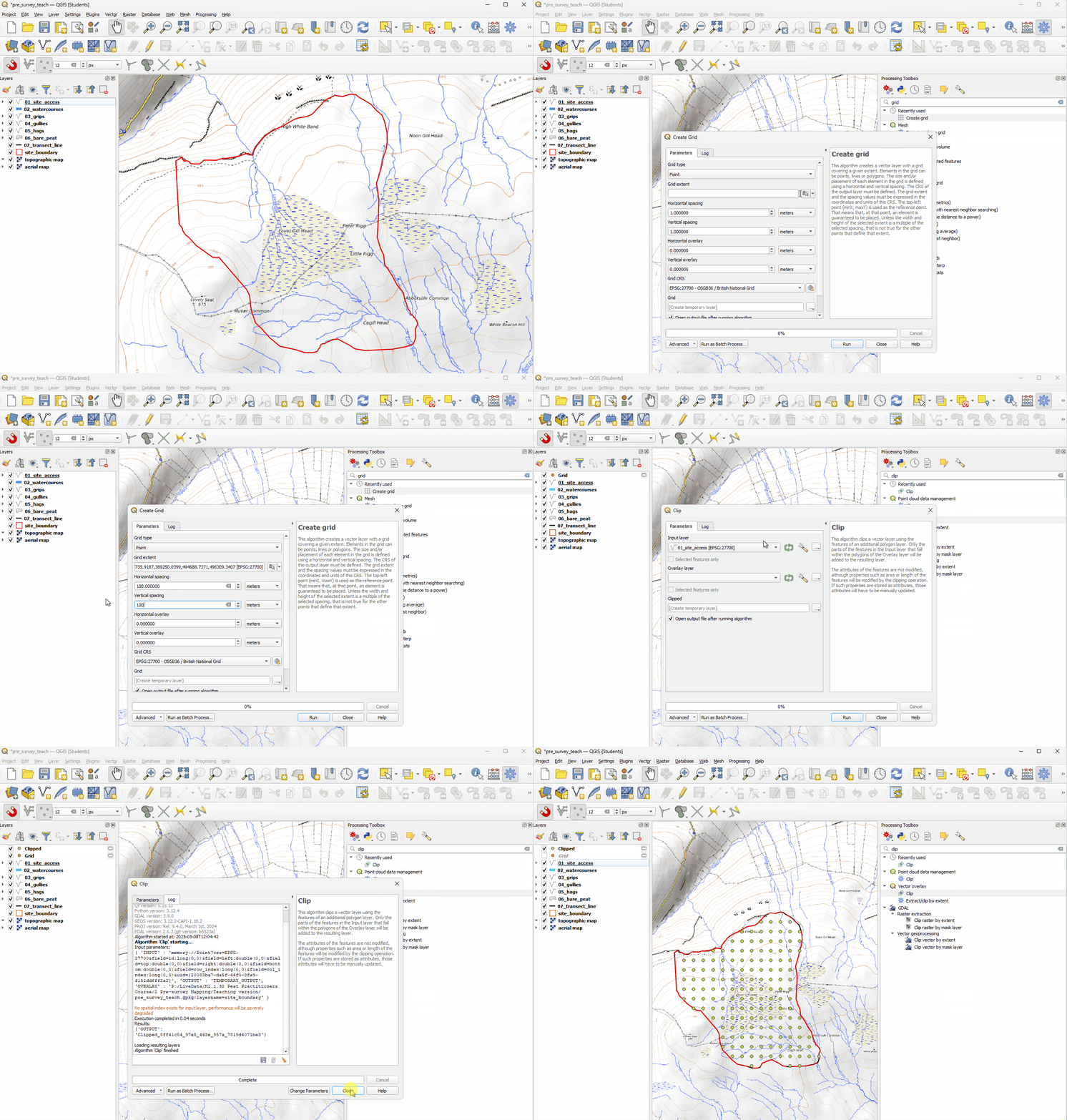
Open the Processing Toolbox by clicking Processing>Toolbox and search for ‘Create grid’.
Set Grid Extent to the site_boundary layer and the horizontal and vertical spacing to 100m, then click Run.
You will now have a grid of points that runs to the extent of the site boundary.
Go back to the Processing Toolbox and search for ‘Clip’. Open this tool and select ‘Grid’ as the input layer and ‘site_boundary’ as the output, this will cut out a layer of points that fall only inside the site_boundary.
You can now remove the original Grid layer by right-clicking its entry in the layers panel and selecting Remove Layer.
Tip
The tools used in this process can also be found under Vector>Geoprocessing Tools/Research Tools.
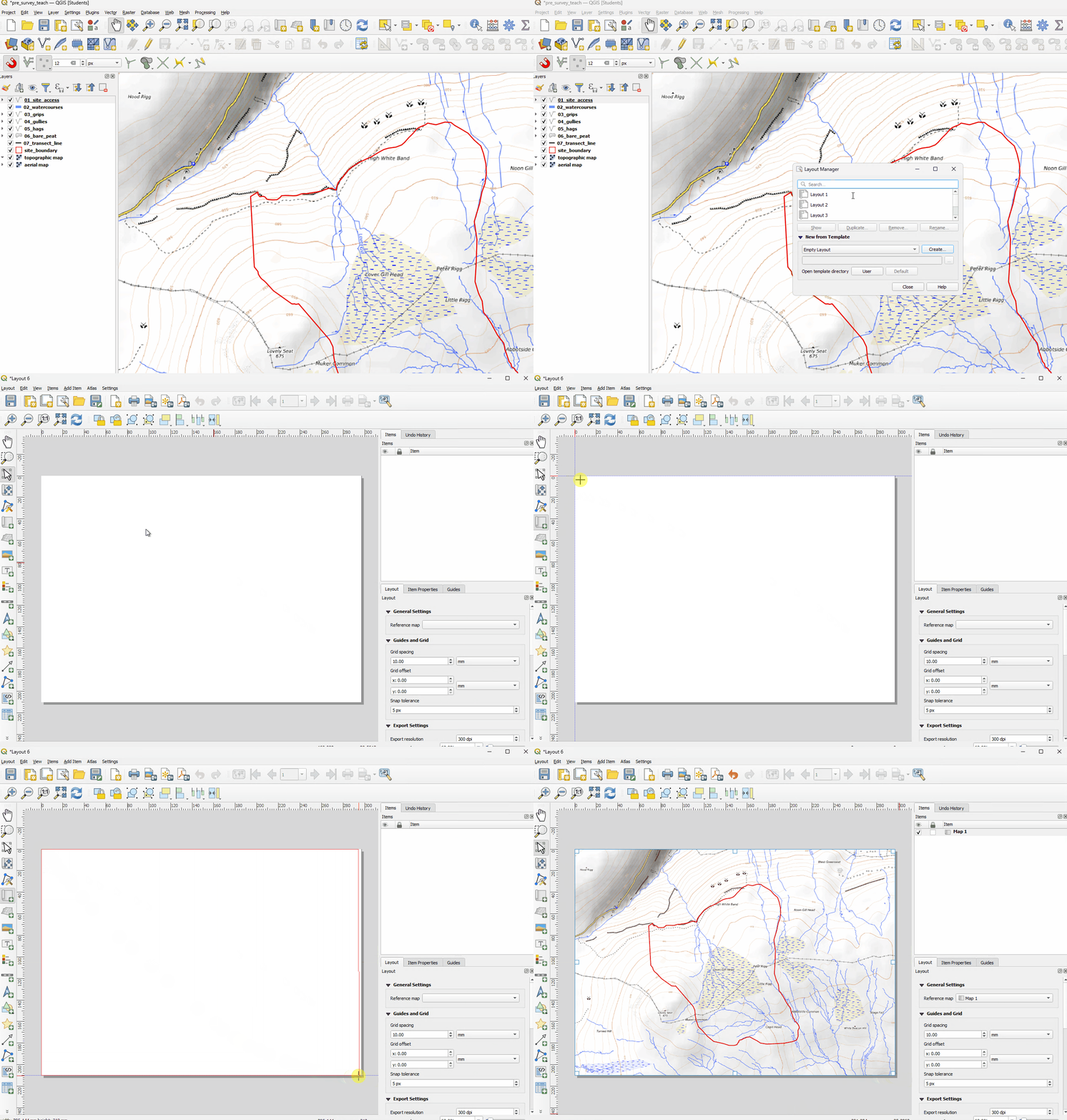
Creating a print preview
Click the Show Layout Manager button
 and then Create.
A name can then be added for your map, click Ok.
This will give you a blank layout view. To copy in your map click the Add Map button
 and drag it out over the layout view.